Timecode Compare measures offset and drift between your LTC sources — sample-accurately, in real time, on your Mac.
Requires macOS 14 Sonoma or later. Works with any Core Audio interface with 2+ inputs.
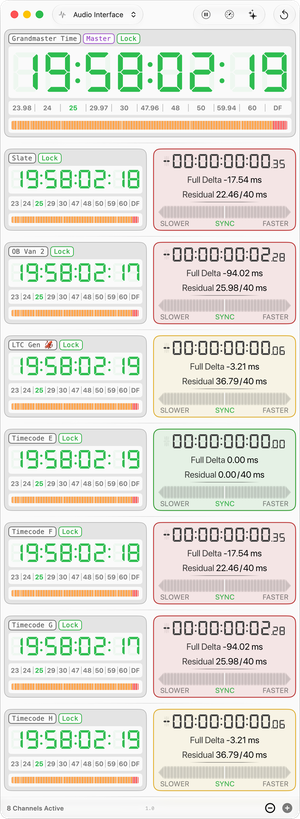
All clocks drift, but not at the same rate. Compare your cameras and generators against a reference to figure out which one drifts too much.
Sooner or later another crew joins with its own timecode world, and locking to someone else's grandmaster is easy to assume and hard to see. Put their master next to yours and you can tell whether the two agree, before the material meets in post.
Every converter, embedder and recorder in the path adds a little delay. Tap the chain at several points at once and you see not just how much it adds, but where it happens.
SMPTE 12M only defines frame rates up to 30 fps. Over the years that produced a range of different approaches to handling anything faster. The HFR button doesn’t just double the base frame rate: it shows the real calculated in-between frames. Frame numbers, subframes, residual and 24-hour projection follow automatically. You can even open a second Timecode Compare window to look and measure a standard and a high frame rate side by side.
Short answers to the questions we get most.
Any Core Audio interface with two or more inputs.
Yes. Build one in Audio MIDI Setup and Timecode Compare treats it like any other
input device.
Be sure to activate Drift Correction; macOS then resamples them onto one common
timebase.
That correction costs a little: it shows up in the drift reading as a few hundredths to tenths of a millisecond wandering back and forth, depending on the interfaces. For the most accurate measurement, use a single interface.
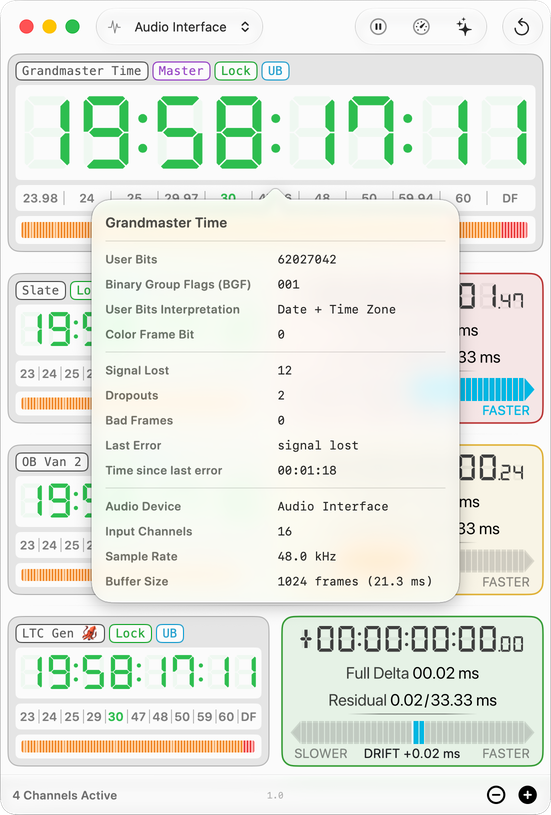
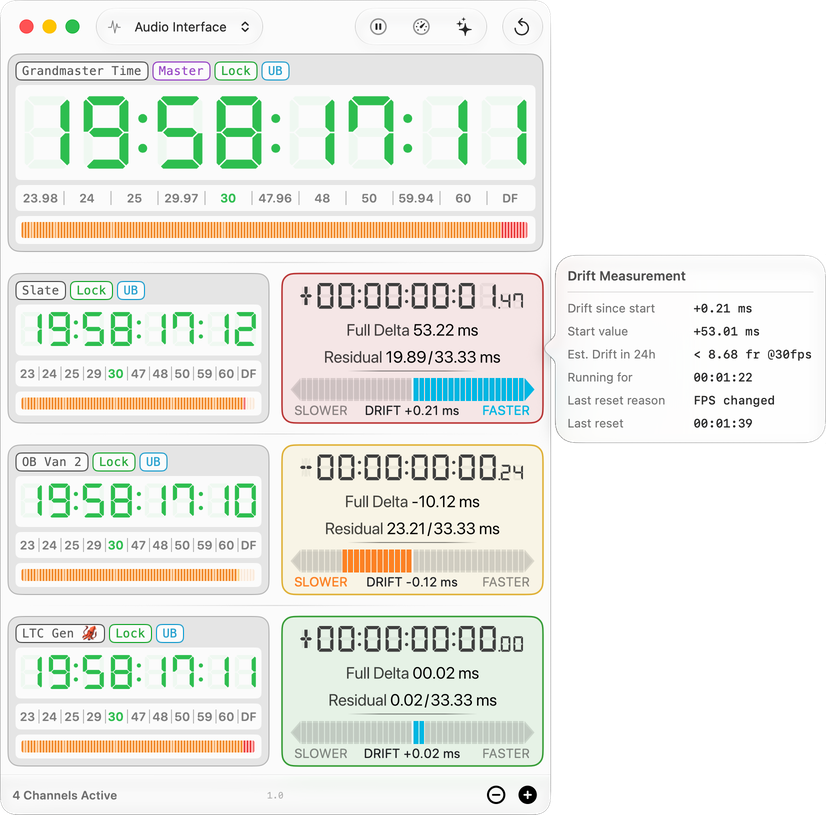
Offsets are determined sample-accurately, at 48 kHz that is a resolution of about 0.02 ms. Drift is measured over time from the same data, with a trend and 24-hour projection.
All common SMPTE rates: 23.98, 24, 25, 29.97 (DF/NDF), 30, plus HFR at 47.96, 48, 50, 59.94 and 60 fps.
No. LTC only ever carries the base rate: shoot 47.96, 48, 50, 59.94 or 60 fps and two recorded frames share one timecode number. Some hardware marks that by doubling the frame number (1, 2, 3 becomes 2, 4, 6). Timecode Compare instead derives the in-between frame from the sample-accurate position of the LTC frame edge. The frame counter runs the full 0-59 at 60 fps, with no skipped numbers.
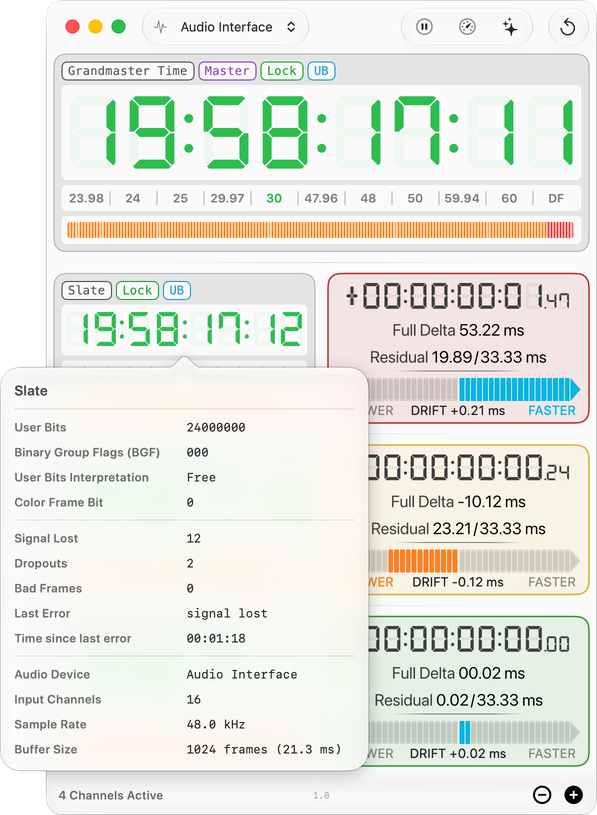
An offset of 00:00:00:01.47 at 30 fps reads 00:00:00:03.07 in HFR (same offset time 53.09 ms), counted in 16.67 ms frames. Subframes run 0-39 instead of 0-79, and the 24-hour drift projection is shown in the HFR rate. The measurement itself is untouched: offset and drift always come from raw sample positions and stay sub-frame accurate at any rate.


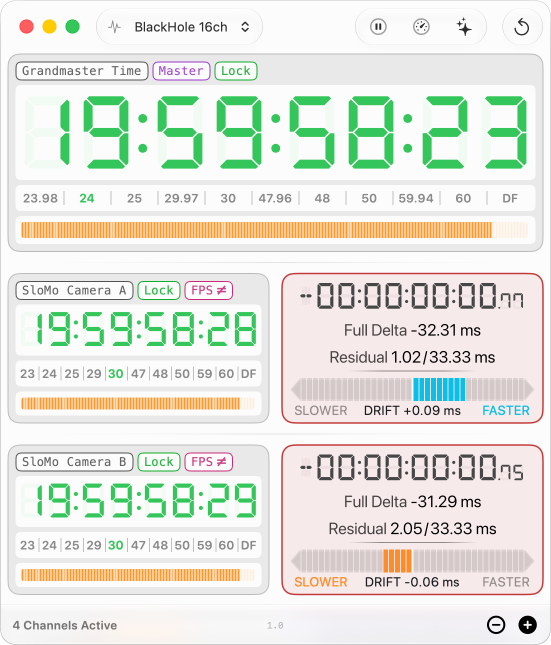
Yes. When the rates differ (say 25 vs 29.97), comparing frame numbers makes no sense. So the app compares points in time instead.
Every LTC frame carries a time stamp. The app turns it into plain seconds: at 25 fps, frame 12 means 480 ms — at 30 fps, frame 15 means 500 ms. Once everything is in seconds, the frame rates no longer matter. And because both signals come in through the same audio interface, the app also knows the exact moment each frame arrived — down to the sample.
The time difference between the two sources is the Full Delta, in
milliseconds. From it the app calculates frames and subframes in the channel’s own
rate. The channel is marked with an 
Each channel shows these chips above its digits, always in this order, and only when they apply.





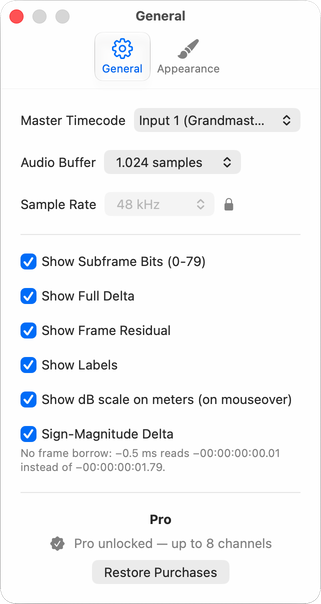
You buy the app once. That is the complete app with two channels (master reference plus one compare channel), including every measurement feature.
If you need more than two channels you can unlock up to 8 channels in one window with a single in-app purchase. It is the only in-app purchase there is, and the only thing it changes is the channel count. No subscription. Prices follow at launch.
Purchases are handled entirely by Apple: the app never sees a payment. Refunds go through Apple’s standard process, from the receipt or via reportaproblem.apple.com.
No. The in-app upgrade stays with the Apple Account that bought it. One purchase per user.
No. Audio is analyzed in memory, in real time, purely to decode timecode: nothing is recorded, stored or transmitted. The app has no network access at all. The App Store privacy label truthfully says Data Not Collected. Details in the privacy policy.
The app writes CSV session logs in the background: per-channel timecode, offset and drift every 10 seconds, plus a run summary with every reset and its reason (device change, FPS change, …). Export via the File menu.
Write to support@timecodecompare.com, ideally with your macOS version, interface model and a session log.
 Timecode Compare